Start with the result you want
Give your agent the executable location, an authorized target or existing session, and a concrete outcome: for example, enter a short note in a remote editor and verify that it appears. The tool does not contain an AI model; your agent decides the next step from the remote screen.
First connect to the server and save data.session. All commands below use SESSION as a placeholder for this returned value.
Look before sending input
For Windows PowerShell, run these examples from the executable’s folder and replace rdp-cli with .\rdp-cli.exe.
rdp-cli screenshot --session SESSION --out before.png
Open the PNG and inspect the desktop. Save data.observation from the response and use it for the next input. Coordinates refer to the remote desktop, not a local viewer window. If you need to focus a field, choose its location from this image:
rdp-cli click --session SESSION --desktop --x 420 --y 315 --observation OBSERVATION
The numbers are only an example. Read the screen and choose actual coordinates. Capture again if the application moves or a new dialog appears.
Enter a note and verify it
With the text editor focused, obtain a fresh observation. When clipboard access is supported, explicitly set the remote text clipboard and paste it:
rdp-cli clipboard set --session SESSION --text "Remote task completed." --observation OBSERVATION
rdp-cli key --session SESSION --keys CTRL+V --observation OBSERVATION
rdp-cli screenshot --session SESSION --out result.png
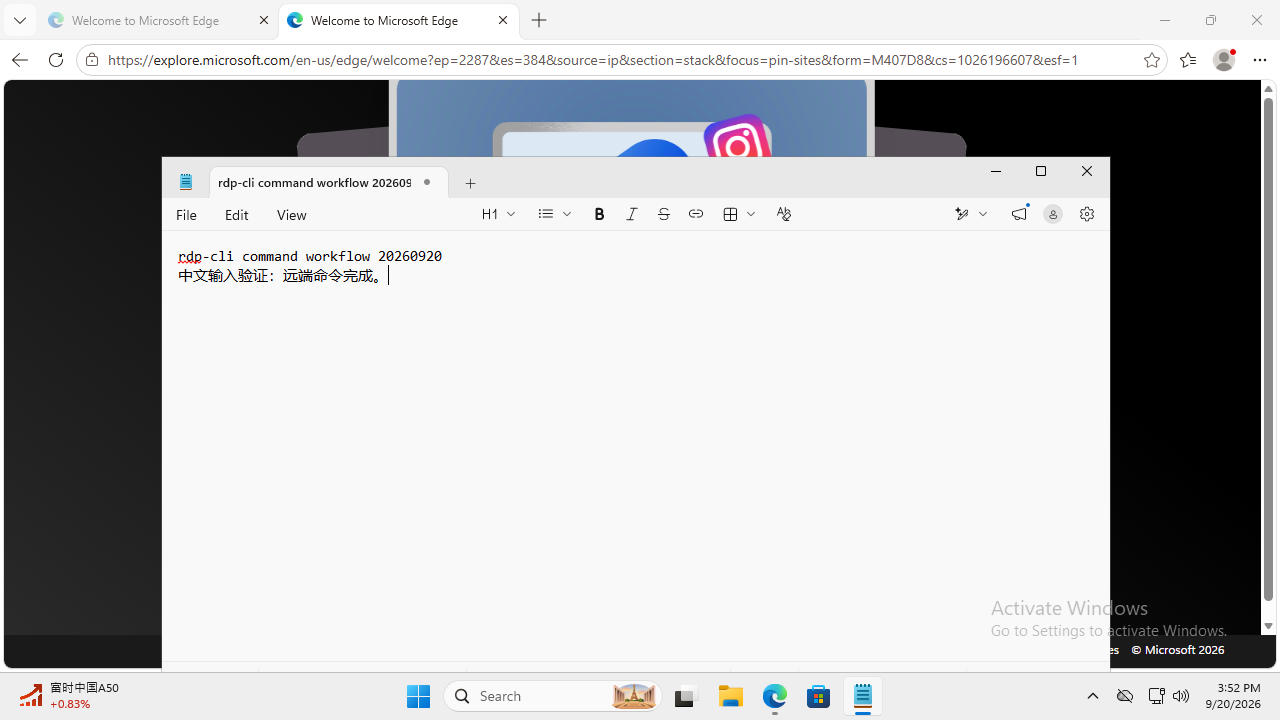
The recorded screenshot below shows this paste result in Windows Notepad. It is a product test capture, not a live connection and not evidence of direct type input.
This original product test uses Chinese text. The screenshot is preserved as recorded; the surrounding guide explains the result.
You can also use type for direct text entry; inspect rdp-cli type --help for its options. Whichever input method you choose, read the resulting screenshot. A successful command means input was dispatched; the application may still be busy or may have rejected the action.
Recover without duplicating work
If an observation expires, capture and inspect again. If a person pauses or takes control, stop sending input. After reconnect or handoff, use a new screenshot instead of an old token.
If an operation times out, query its original request or operation before retrying:
rdp-cli operations status --session SESSION --request-id REQUEST_ID
An uncertain result does not prove nothing happened. The same caution applies to file transfers: query files status and verify the completed result. Do not repeat an upload just because its first reply was lost.
Keep the local desktop available
Normal screenshot and input commands travel through the remote protocol. They do not need a local viewer or move your local pointer. A person can still open the session to watch or take over. See the feature guide for clipboard, files and protocol conditions.