The recorded task and its result
On 21 September 2026, an Agent used rdp-cli 0.1.0, macOS build 2026092001, to operate LibreOffice Calc 26.8.0 on Windows 11 over RDP at 1440 × 900. It uploaded a workbook with 12 months of fictional service data, created a two-series chart and three totals in the remote application, then retrieved the saved XLSX. Calc performed the calculations and chart creation; the local computer supplied only the input material.
Download the source workbook and the recorded result. The steps below explain how to reproduce the task with the real command interface. Placeholder coordinates and tokens are not a literal replay of the original session.
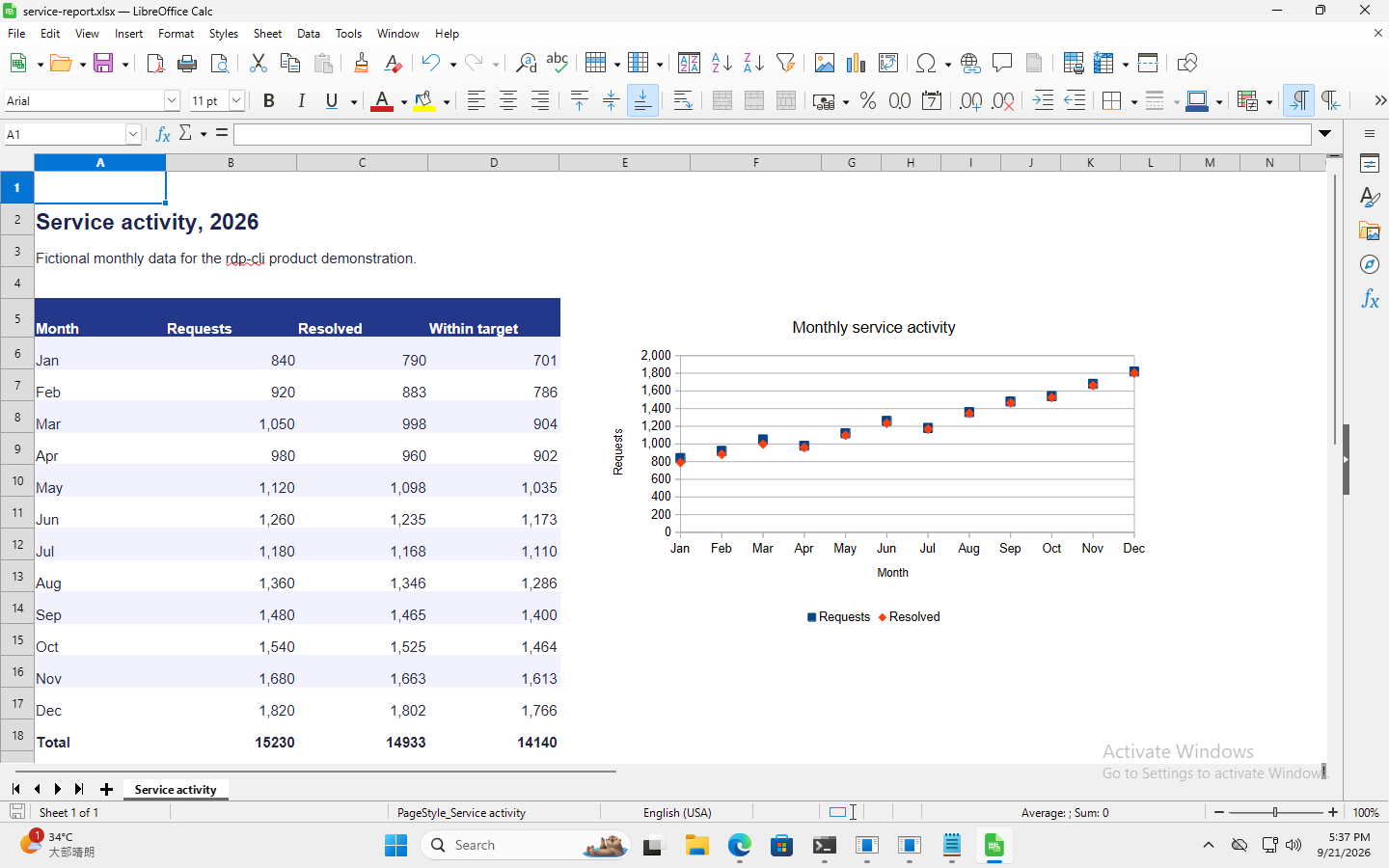
This is the original English interface recorded on 21 September 2026. The screenshot has not been translated or retouched; its labels remain in English.
Prepare an authorized RDP session
Install the Mac download, enable the CLI, and follow the quick start to connect. The remote Windows computer must already have Calc installed and allow drive redirection. Your caller needs file and input permissions. Use the returned data.session for SESSION; do not reuse a session ID from someone else's record. This case was tested on macOS; it is not a Microsoft Excel test or a benchmark of every client platform.
Save the source as service-activity.xlsx in the current local directory. Its size is 4,489 bytes. Check the session and upload it to the exchange-drive root:
rdp-cli status --session SESSION
rdp-cli files upload --session SESSION --local ./service-activity.xlsx --path service-activity.xlsx
Save the upload's data.transfer_id as TRANSFER_ID and wait for completed:
rdp-cli files status --session SESSION --transfer-id TRANSFER_ID
queued only means accepted. --path addresses the session exchange drive, not arbitrary Windows disks. VNC cannot perform this file workflow. See the file transfer guide for directory transfers and overwrite behavior.
Open the workbook and create the chart
rdp-cli screenshot --session SESSION --out calc-before.png
Read calc-before.png and save data.observation. Open Calc on the remote desktop, then open service-activity.xlsx from the session's redirected drive. Choose actual targets from fresh screenshots; opening a local spreadsheet is not part of the remote task.
In Calc, select A5:C17, including the header row. Insert a chart with the months as categories and Requests / Resolved as the two data series. Use point markers without connecting lines, add the title “Monthly service activity” and axis labels “Month” / “Requests”, then place the chart to the right of the data. Use the current Calc interface to find controls; menu layout and coordinates may differ in your environment.
Enter formulas and verify each result
Select B18 in the sheet. One possible input sequence is below: replace X, Y with the actual cell coordinates and OBSERVATION with the token from the screenshot you just inspected.
rdp-cli click --session SESSION --desktop --x X --y Y --observation OBSERVATION
rdp-cli screenshot --session SESSION --out calc-focused.png
Read calc-focused.png to confirm the intended cell is active, then use its data.observation as NEW_OBSERVATION:
rdp-cli type --session SESSION --text "=SUM(B6:B17)" --observation NEW_OBSERVATION
rdp-cli screenshot --session SESSION --out calc-formula.png
Read calc-formula.png and confirm the formula text. Use that response's current token as FORMULA_OBSERVATION, then commit and inspect:
rdp-cli key --session SESSION --keys ENTER --observation FORMULA_OBSERVATION
rdp-cli screenshot --session SESSION --out calc-total.png
Repeat the same observe → focus → type → confirm procedure for the other cells, replacing the formula and tokens each time:
| Cell | Formula | Expected total |
|---|---|---|
| B18 | =SUM(B6:B17) |
15,230 |
| C18 | =SUM(C6:C17) |
14,933 |
| D18 | =SUM(D6:D17) |
14,140 |
Make the total row bold. A successful input response proves dispatch, not that Calc accepted the formula; inspect the next screenshot and the saved workbook.
Save, retrieve and check the XLSX
Save As service-report.xlsx in the same redirected drive. Keep the XLSX format when Calc asks, and wait for saving to finish. Then retrieve it:
Keep the downloaded archive reference named service-report.xlsx. The following command saves your own remotely produced result locally as service-report-reproduced.xlsx, so the two files stay distinct.
rdp-cli files list --session SESSION
rdp-cli files download --session SESSION --path service-report.xlsx --local ./service-report-reproduced.xlsx
Use the download's new data.transfer_id with files status; continue only after completed. Check that the workbook opens, preserves the three formulas and totals, and contains an editable chart using A6:A17, B6:B17 and C6:C17. The recorded result had no external workbook links.
shasum -a 256 ./service-report-reproduced.xlsx
The archived result is 11,417 bytes, with SHA-256 2ce1005ca2d4c0ad0e0330b8d0f7aab67e96dd1697b2344669ff621db41b6dc4. That digest identifies the downloadable recorded file. A workbook you recreate may have different metadata and bytes; assess its formulas, values and chart rather than requiring the same digest.
If a step does not work
- No exchange drive or file permission: check RDP drive redirection and the caller's capabilities. Saving only to the remote Desktop does not put the result into the exchange directory.
- Typing appears in the wrong place: inspect a new screenshot and restore the intended focus. Do not keep sending formulas without checking.
- Expired observation, pause or human takeover: stop input. After an authorized handoff, capture and read a new screenshot before continuing.
FILE_BUSYor unfinished saving: finish the application's save operation, inspect the file and query transfer status. Do not treat a queued download as a finished result.- An input call times out: use
rdp-cli operations status --session SESSION --request-id REQUEST_IDwith the original request ID and inspect the screen before retrying. Unknown output is not proof that nothing happened.
The evidence covers this Calc task with fictional data, not arbitrary office software or complex-workbook performance. Continue with the Agent command workflow or review RDP file capabilities.