Let your agent work
Connect to existing desktops, observe the screen and use commands to operate applications. Keep several sessions running.
RDP / VNC
Explore rdp-cli features for AI agents on Windows, macOS and Linux: screenshots, input and human handoff over RDP or VNC, plus RDP file exchange and audio.
Connect to existing desktops, observe the screen and use commands to operate applications. Keep several sessions running.
Watch the same session from a window or an authorized browser. Pause, make a change yourself and hand control back.
Use multiple displays, send project folders, exchange text and listen to remote sound. Bring the results back when they are ready.
Connect to existing desktops, observe the screen and use commands to operate applications. Keep several sessions running.
RDP / VNC
Capture the desktop, click, drag, scroll, enter text and send shortcuts. The agent reads the returned JSON and checks the next screenshot to see what actually happened. A successful input dispatch alone does not confirm the task result.
Take a screenshot, act using its observation token, then capture again.
Quick startrdp-cli clipboard set \
--session SESSION \
--text "中文输入验证:远端命令完成。" \
--observation OBSERVATION
rdp-cli key --session SESSION \
--keys CTRL+V \
--observation OBSERVATION
rdp-cli screenshot \
--session SESSION --out result.pngRDP / The result, in the actual application
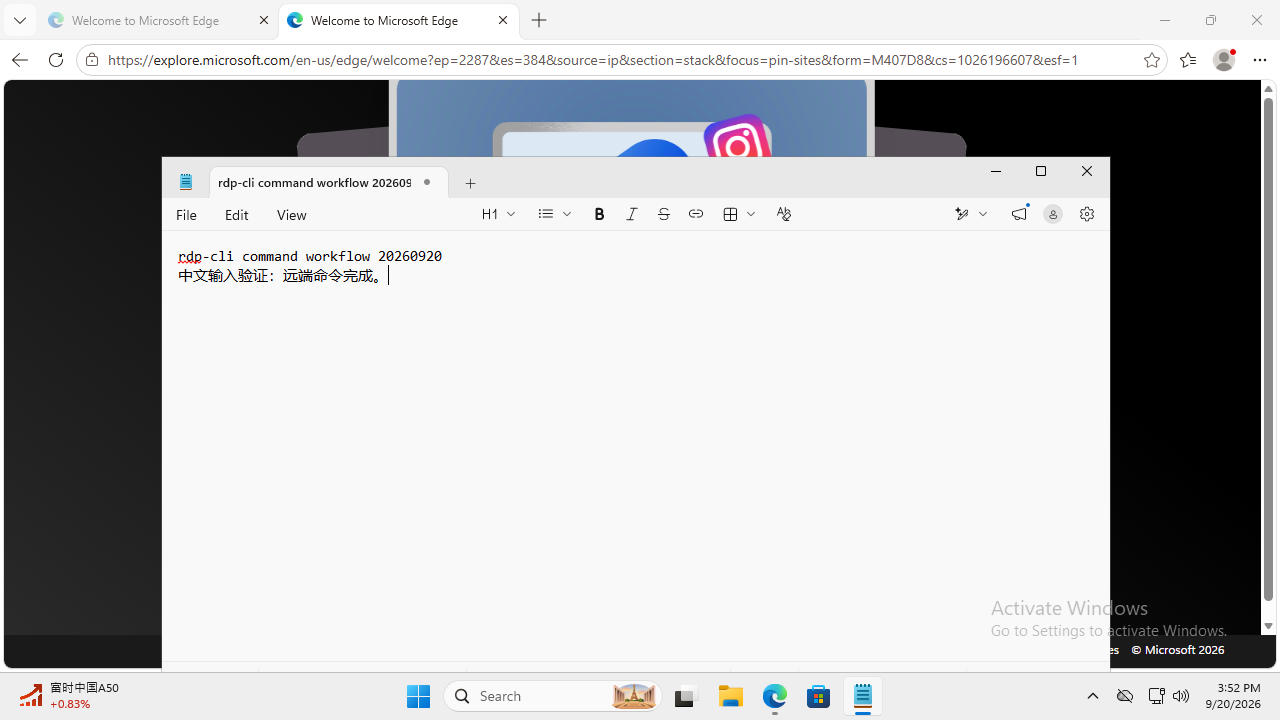
After every action, look at the result. Let the remote screen guide the next step.
RDP / VNC
Connect to an existing RDP or VNC server from Windows, macOS or Linux. Use the same screenshot, input and viewing workflow. Remote access must already be enabled and reachable; this tool does not create a hosted remote desktop.
Choose RDP for a Windows desktop, or select VNC for an existing VNC server.
Quick startRDP / VNC
Keep multiple sessions connected and address each one by its session ID. Closing a read-only viewer keeps the connection. Reconnection invalidates old observations and leaves control paused; review the current screen before explicitly resuming.
List current sessions, inspect one session, and disconnect only the session you no longer need.
Quick startTroubleshoot RDP connections, black screens and blocked input →
Watch the same session from a window or an authorized browser. Pause, make a change yourself and hand control back.
RDP / VNC
Open a native window or an authorized browser to view an existing session. Several people can observe, but only one viewer can own human control. Taking control stops agent input; releasing it hands the session back. Losing the controlling viewer pauses input.
Watch a task, take control for a correction, then return the same session to the agent.
Quick start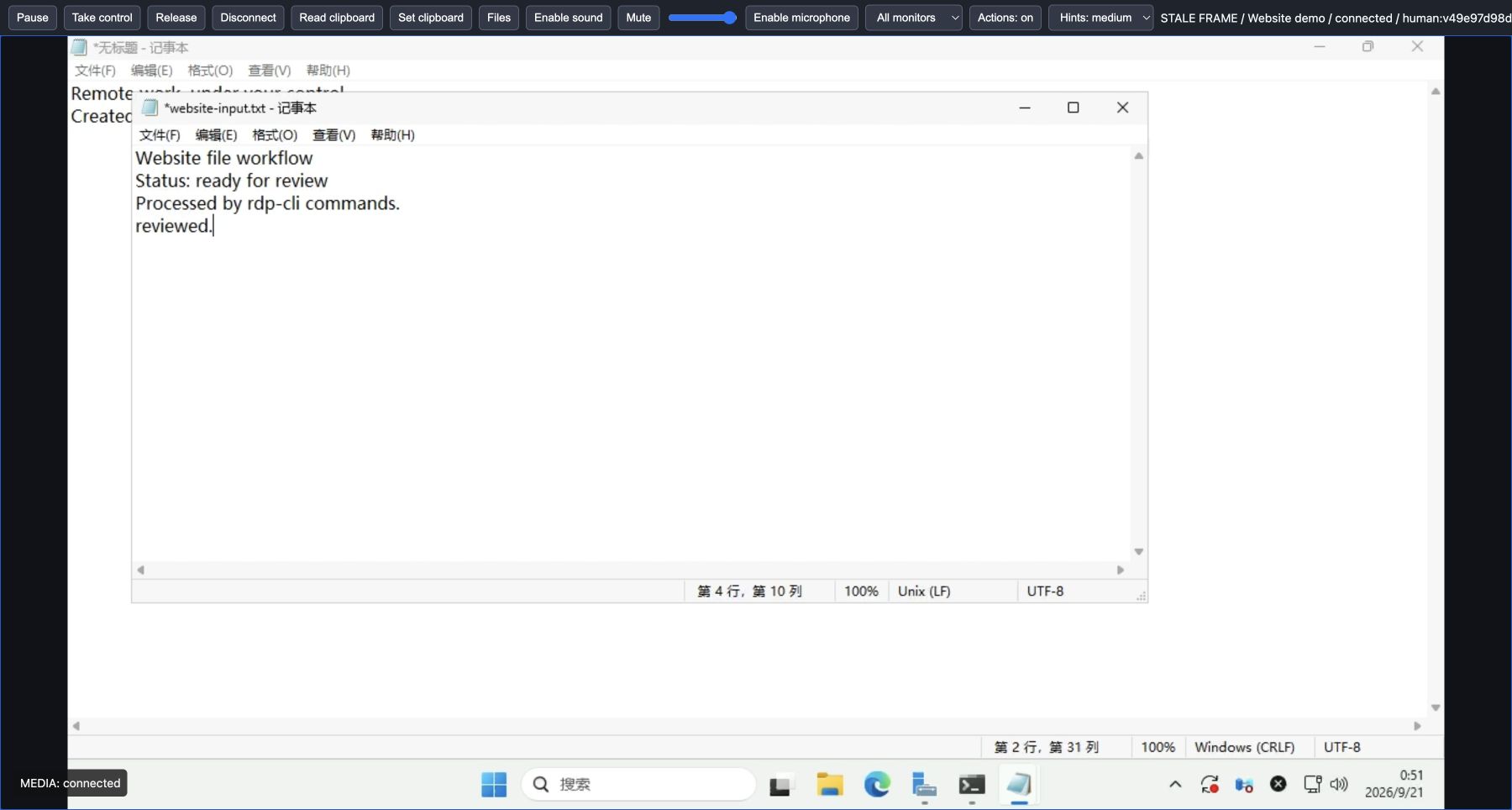 View original screenshot ↗
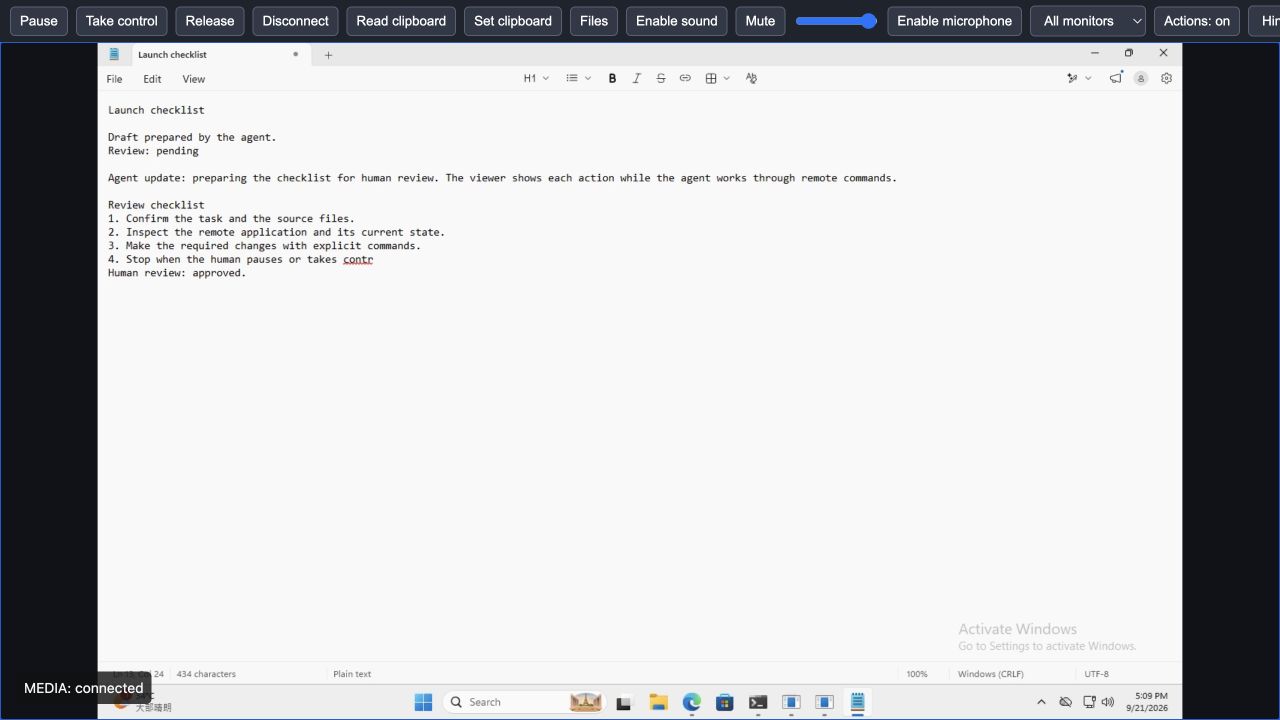
Recorded on Windows 11 through one RDP session. The agent writes a checklist; a person interrupts and reviews it.
Typing hints appear as rdp-cli sends text to the remote application.
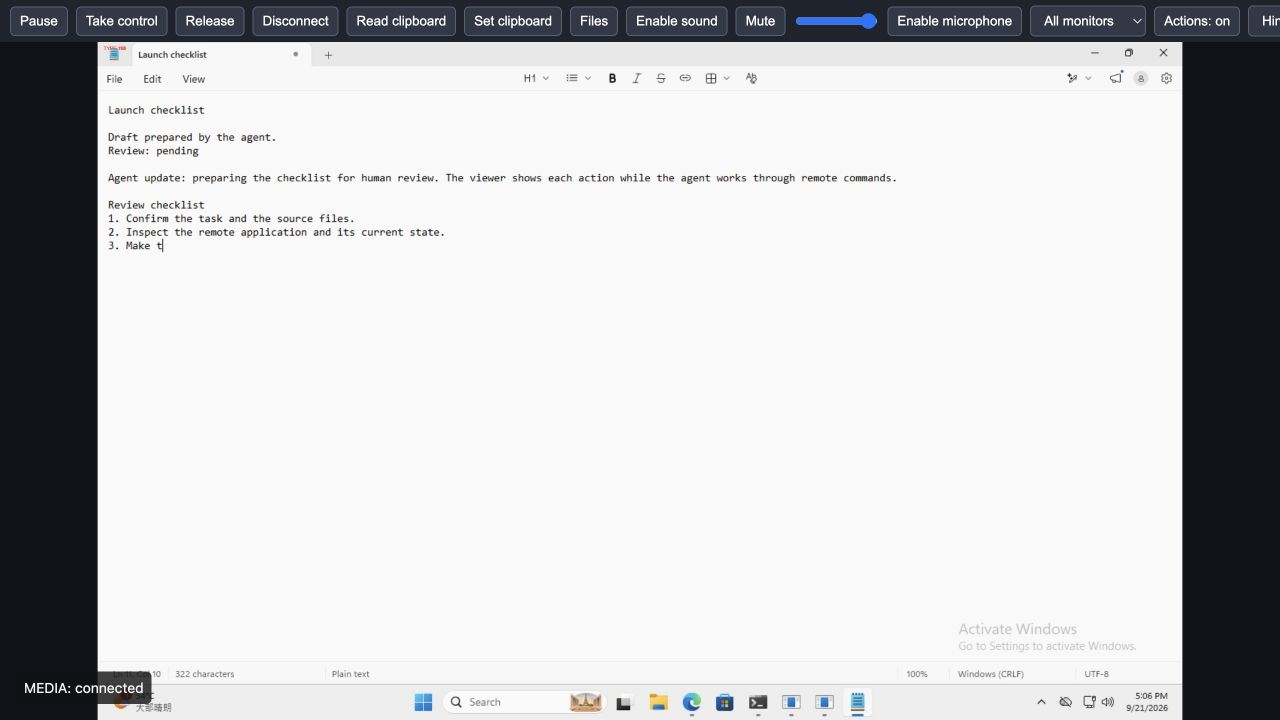 View original screenshot ↗
 The viewer pauses input. The unfinished sentence remains visible.
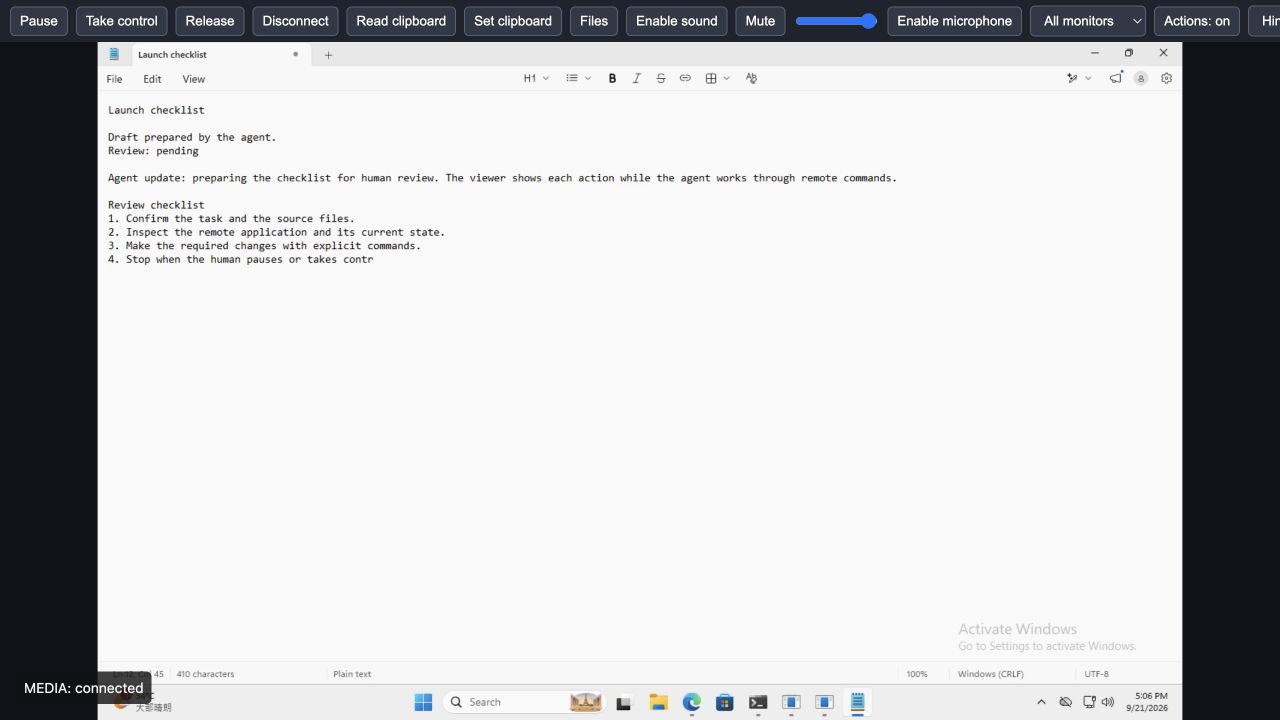 View original screenshot ↗
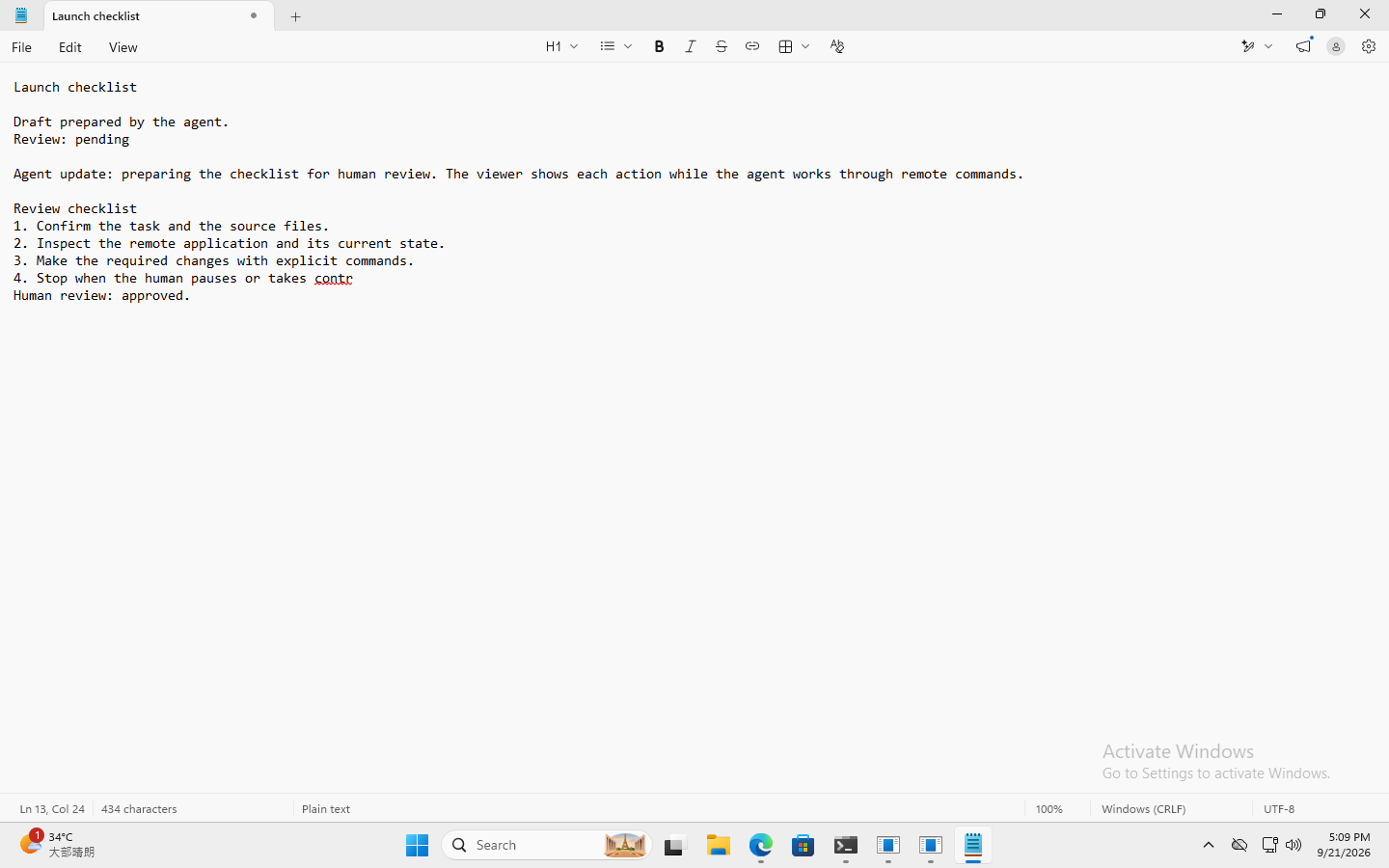
 The person takes control and adds “Human review: approved.” in the same document.
 View original screenshot ↗
 After release, the agent takes a fresh remote screenshot, checks the review and saves the result.
 View original screenshot ↗
 The finished file was retrieved through the exchange drive and verified with SHA-256. Download the actual result (504 B)
Original English recordings, captured on 21 September 2026. Screenshot pixels are unchanged by website language or theme.
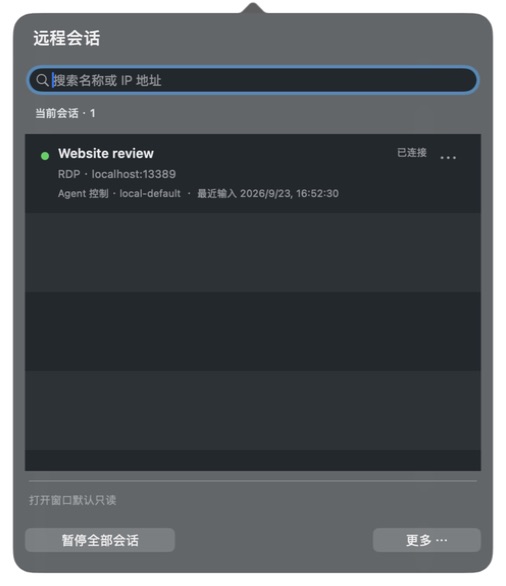
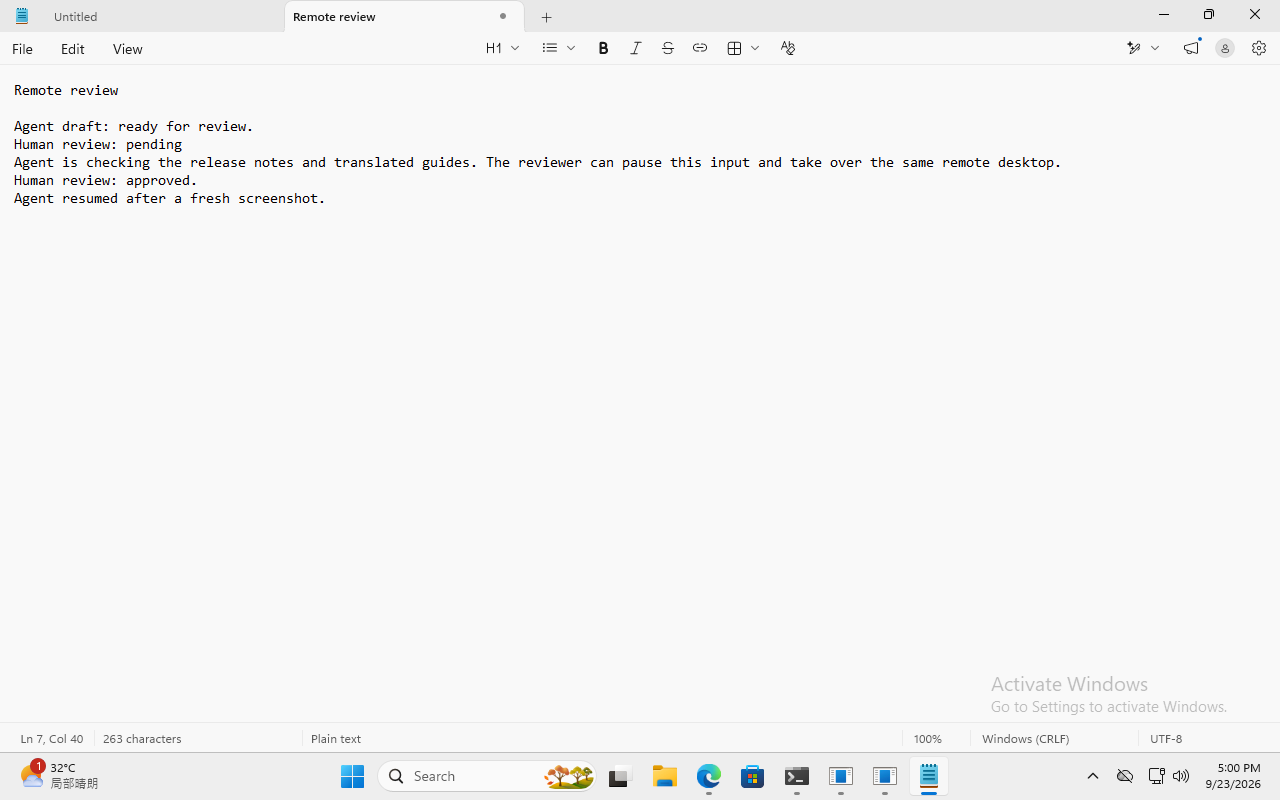
Recorded on 23 September 2026. The menu panel and the final observation below belong to one Windows 11 RDP session.
 View original screenshot ↗
  View original screenshot ↗
 Original captures: the Mac panel is in Chinese and the remote desktop is in English.
RDP / VNC
Click rings, drag paths, scroll directions, shortcuts and text-entry progress show what was sent. Each viewer can turn these hints off. Text hints do not repeat the entered content and are separate from the remote pixels.
Watch where the agent clicks. The remote screen itself is not automatically redacted.
Quick startRDP / VNC
Connect with a local or domain account. Save and reference credentials using the supported credential store, and grant browser resources explicitly. RDP certificate settings and VNC security modes have different boundaries; choose them for your environment.
Separate permission to view a session from permission to control input, files or microphone.
Quick startUse multiple displays, send project folders, exchange text and listen to remote sound. Bring the results back when they are ready.
RDP
For a negotiated multi-monitor RDP session, capture the full desktop or one monitor, target a screen and drag across screens. Native viewers can open separate monitor windows; browser viewers can switch screens. Resizing a viewer changes its presentation, not the remote layout.
Inspect one screen while keeping an overview of the complete desktop.
Quick startRDP
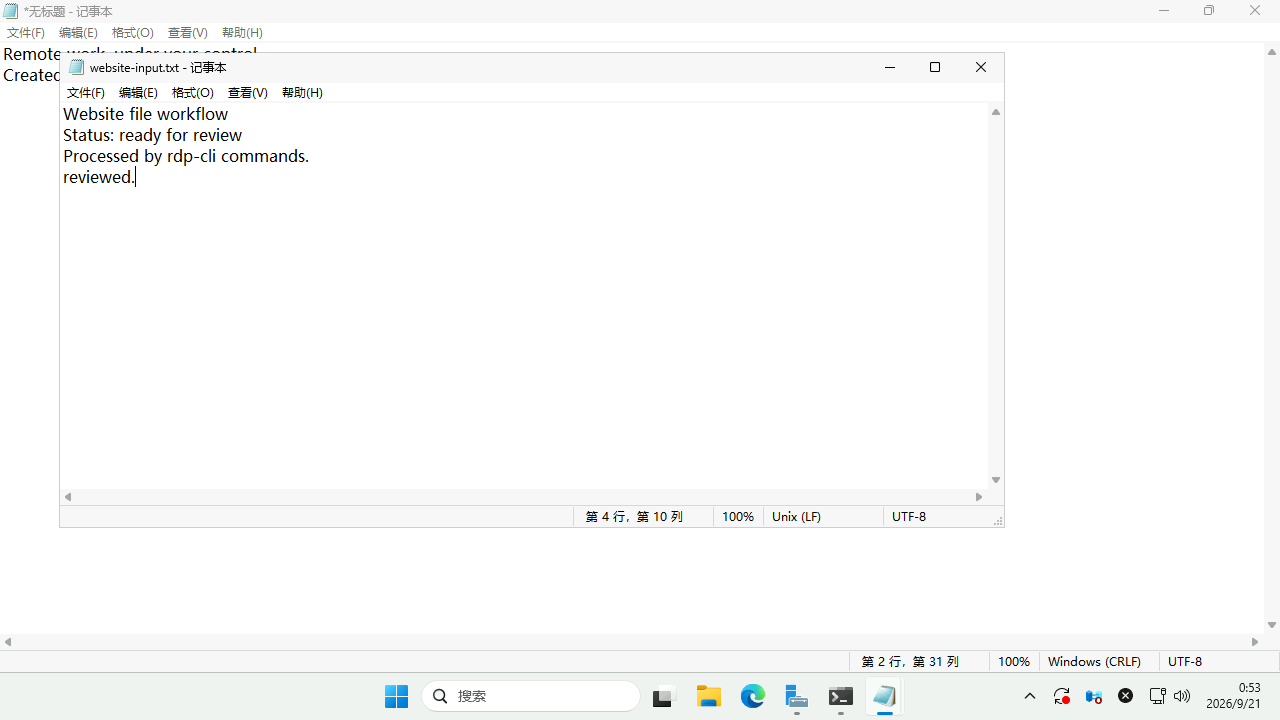
Upload to the session exchange drive, process the document remotely, then download it. CLI, native and browser views share transfer progress and cancellation. Overwriting an existing file is explicit. RDP drive redirection must be allowed by the server.
Transfer a report folder, edit a document remotely and retrieve the saved result; this is not arbitrary access to remote disks.
Quick startFiles and folders → session exchange drive
Open, edit and save the resulting file
Follow transfer progress and verify the completed file
 View original screenshot ↗
RDP / VNC
Read or set remote clipboard text explicitly, and paste it with a shortcut. This does not automatically synchronize your local clipboard. RDP clipboard access depends on server policy; VNC text encoding depends on negotiation.
Set the remote clipboard, send CTRL+V and inspect the application result.
Quick startRDP
Play RDP sound with separate playback controls in each viewer. A person can explicitly enable microphone capture while holding control, subject to system permission and server support. Release or disconnect stops capture; it does not restart automatically.
Listen to a remote playback task; turn on the microphone only when you need voice input.
Quick startBoth protocols share the command workflow. Extra capabilities depend on the protocol and the remote server.
| Features | RDP | VNC |
|---|---|---|
| Screenshots and keyboard / mouse | Supported | Supported |
| Text clipboard | Depends on server policy | Depends on negotiated encoding |
| Exchange drive and files | Depends on server policy | Not available |
| Sound and microphone | Depends on server policy | Not available |
| Requested multi-monitor layout | Depends on server policy | Not available |
Supported VNC modes do not encrypt the transport. Use a trusted network or VPN. Classic VNC authentication uses the first eight UTF-8 password bytes.
Browser viewing and control work on your LAN or VPN.