Let your agent work
Connect to existing desktops, observe the screen and use commands to operate applications. Keep several sessions running.
RDP / VNC · BUILT FOR AI AGENTS
Observe and operate remote computers with commands. Send files. Bring results back.
Watch, pause, or take control of the same session whenever you need.
Free to use·Windows/macOS/Linux
Let your agent use desktop applications, stay involved when it matters, and bring the finished work back.
Connect to existing desktops, observe the screen and use commands to operate applications. Keep several sessions running.
Watch the same session from a window or an authorized browser. Pause, make a change yourself and hand control back.
Use multiple displays, send project folders, exchange text and listen to remote sound. Bring the results back when they are ready.
rdp-cli screenshot --session SESSION --monitor M1 --out before.pngSESSION, M1, X/Y, and OBSERVATION are placeholders. Use values from the actual session and screenshot responses.
screenshot saves the current frame from remote display 1 as before.png. Your agent reads that image to locate its next action.
Example: locate the target position on the video timeline in the image.
The screenshot response also includes data.observation, tying the next input to the frame just observed.
The window below lets people watch the same session. Your agent gets remote PNGs without opening it. PNGs exclude viewer toolbars, agent panels, and action hints.
 coast_01.mp4coast_02.mp4coast_03.mp4
BUSINESS INSIGHTS / 2026 Q2
Sales performance| Month | Revenue | Target | Orders |
|---|---|---|---|
| Jan | $120,000 | $130,000 | 2,400 |
| Feb | $145,000 | $140,000 | 2,900 |
| Mar | $132,000 | $150,000 | 2,640 |
| Apr | $181,000 | $170,000 | 3,620 |
| May | $206,000 | $190,000 | 4,120 |
| Jun | $248,000 | $220,000 | 4,960 |
Your agent will check the data, compare targets, and organize a readable report.
June accounts for 39.1% of quarterly revenue. Direct sales is the leading channel.
From a spreadsheet to trends, then a report ready to share.
| Month | Revenue | Target | Orders |
|---|---|---|---|
| Jan | $120,000 | $130,000 | 2,400 |
| Feb | $145,000 | $140,000 | 2,900 |
| Mar | $132,000 | $150,000 | 2,640 |
| Apr | $181,000 | $170,000 | 3,620 |
| May | $206,000 | $190,000 | 4,120 |
| Jun | $248,000 | $220,000 | 4,960 |
ONE COMPLETE REMOTE TASK
Upload files or folders to the RDP session exchange drive for the remote app to use.
Your agent observes screenshots, clicks and types, then checks the actual result in the app.
Save the result to the exchange drive, check it, and download the finished files to your computer.
File exchange requires drive redirection to be allowed by the RDP server.
ALWAYS IN YOUR HANDS
Open an existing session from the menu bar or tray. Watch the same desktop in a native window or authorized browser, with visible clicks and drags. Pause, take the keyboard and mouse, then hand control back. Several people can watch; only one controller operates at a time. Browser access is for LAN or VPN.
See how to get started ↗This illustrates a handoff. It does not connect to a computer.
TOOLS FOR THE WHOLE REMOTE TASK
From one window to multiple displays. From a few lines of text to an entire folder. Connect your agent’s actions, your oversight, and the finished result.
01 / RDP
Keep footage or data on one display and a preview or report on the other. Your agent can observe the whole desktop or capture and operate a specific display.
Requires a multi-monitor-capable RDP session. Resizing a viewer does not change the remote display layout.
Explore this feature ↗Two displays in the same session
Preview / reportFocus on one screen. Or see the whole picture.
02 / RDP
Send footage, spreadsheets, or an entire project folder to the session exchange drive. Let your agent work in the remote app, save the result, and bring the film, report, or folder back.
RDP drive redirection must be allowed by the server. The file panel manages the session exchange drive, not arbitrary remote disks.
Explore this feature ↗Illustrated file exchange
03 / RDP
Hear remote apps in a native window or authorized browser. Review a film’s soundtrack or check app audio. Each viewer adjusts its own volume independently.
RDP audio and microphone support depend on server capabilities and permissions. A browser microphone also requires a secure context and device permission.
Explore this feature ↗Illustrated playback and microphone
Independent volume
Connect, capture the remote screen, send clicks, drags, text, or shortcuts, then capture again to check the result. JSON responses, status, and explicit errors support your agent or scripts. Normal command operation needs no local viewer.
Observe → act → verify
Explore this feature ↗Manage several sessions with one tool and keep using each session ID in later commands. Closing a read-only viewer leaves the connection running. Reconnection pauses input so you can check the current screen before explicitly resuming.
Check the connection, controller, and current state
Explore this feature ↗Search current sessions from the Mac menu bar, or open the Windows tray menu. See targets, connection state, and controllers. Open a window or browser, pause a session, or disconnect it.
Open the existing session without a second login. On Linux, use the searchable session panel; a status icon is also available when the desktop supports it. Without a tray, open the panel with presence show --panel.
Explore this feature ↗Click rings, drag paths, scroll directions, shortcuts, and typing progress show where your agent is working. Turn hints off when you prefer. They do not echo typed text or appear in the agent’s screenshots.
See what happens and decide when to step in
Explore this feature ↗Explicitly read or write the remote text clipboard, then paste into the target app. Useful for addresses, paragraphs, and tabular text. Your local clipboard is not automatically synchronized or replaced.
RDP follows server policy; VNC encoding is negotiated
Explore this feature ↗Connect to existing RDP or VNC services with the same observation and input workflow. RDP supports local and domain accounts and stored credential references. Browser access grants separate viewing, control, and file permissions.
Windows / macOS / Linux clients · Browser access over LAN / VPN
Explore this feature ↗Files, audio, and the multi-monitor features above require RDP and server support. VNC supports display, input, viewing, and handoff; it does not provide these file, audio, microphone, or active display-layout features.
Take a screenshot, act using its observation token, then capture again.
Watch a task, take control for a correction, then return the same session to the agent.
Transfer a report folder, edit a document remotely and retrieve the saved result; this is not arbitrary access to remote disks.
Two real workflows: an Agent used rdp-cli commands on a Mac to operate Windows 11 applications over RDP, then retrieved the finished files.
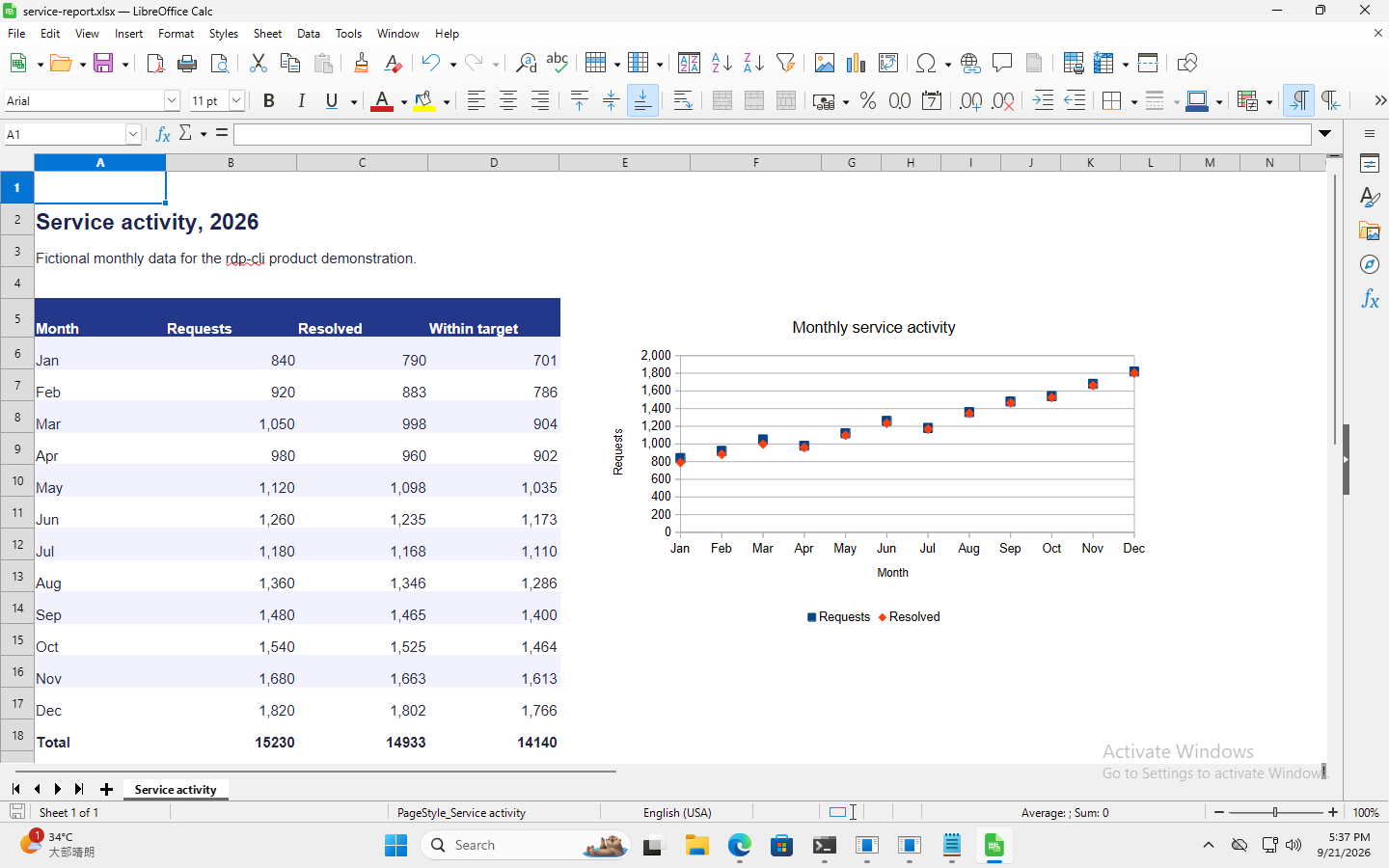
LibreOffice Calc · RDP
rdp-cli files uploadUpload a workbook with 12 months of sample service data.
rdp-cli screenshot → click / type / keySelect the data, create a two-series chart, and add three SUM formulas in the remote application.
rdp-cli files downloadSave and retrieve the XLSX. Verify the chart and totals: 15,230 requests, 14,933 resolved, 14,140 within target.
 View original screenshot ↗
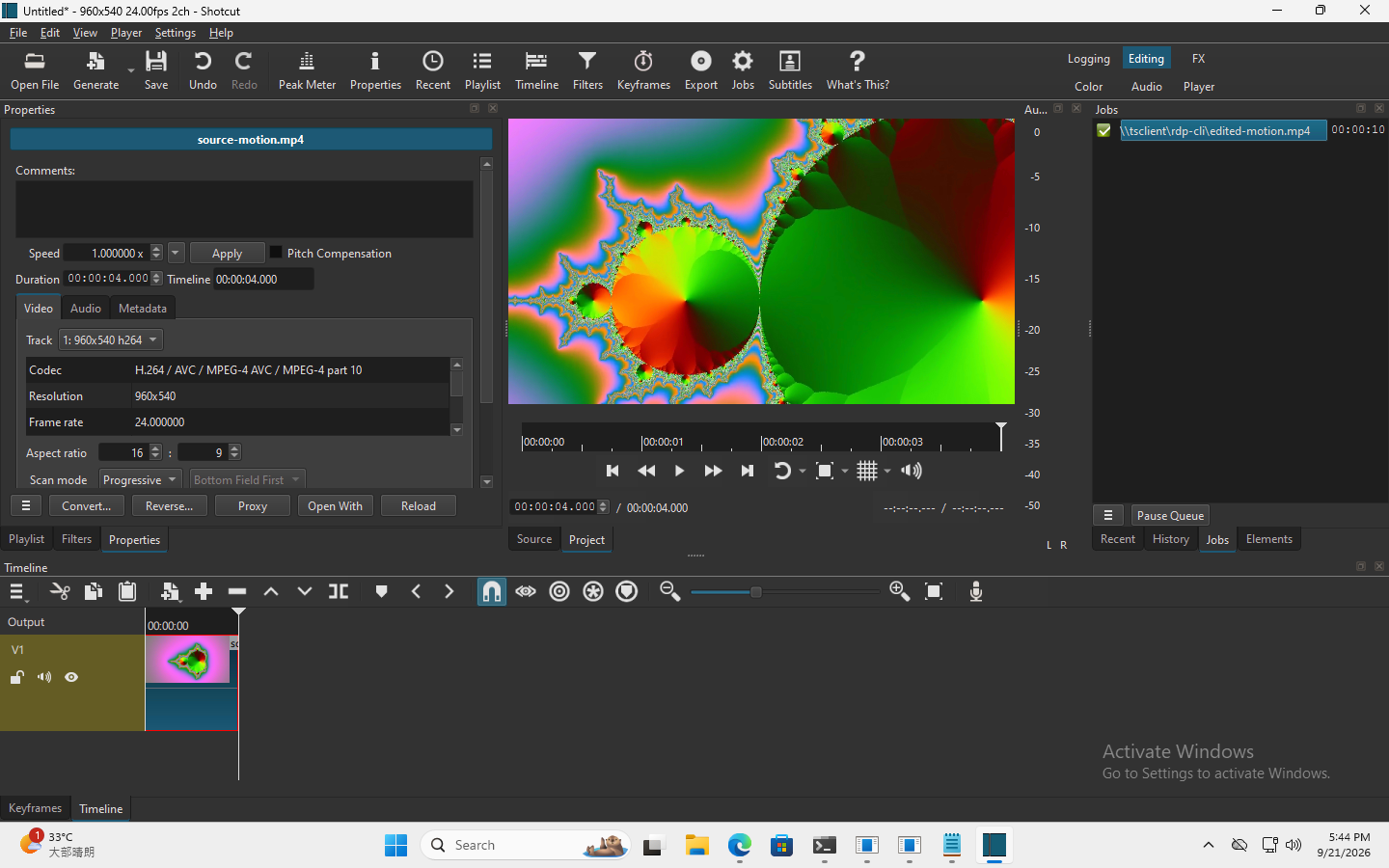
 Shotcut · RDP
rdp-cli files uploadUpload an eight-second animation and open it in Shotcut.
rdp-cli screenshot → click / type / keyAdd it to the timeline and trim its duration to four seconds through the remote interface.
rdp-cli files downloadExport MP4 and retrieve it. Verify 96 video frames at 24 fps, 960 × 540, and a matching transfer checksum.
 View original screenshot ↗
 Recorded on 21 September 2026 in English. Original screenshots are unchanged. The workbook uses fictional data; the video uses a self-created animation. These examples demonstrate task completion, not a performance benchmark.
START ON YOUR COMPUTER
Choose the computer that runs rdp-cli.
Give your agent the tools for remote work.
Choose the x64 (64-bit) or x86 (32-bit) EXE. Put rdp-cli.exe in a folder and open PowerShell in that folder.
Signed x64 and x86 EXEs. No additional runtime required.
.\rdp-cli.exe --helpEnable RDP on the target first. Replace 192.0.2.20 and USER. The hidden prompt passes your password through standard input. Save data.session from the JSON response.
$secret = Read-Host 'Password' -AsSecureString
$savedEncoding = $OutputEncoding
try {
  $OutputEncoding = [System.Text.UTF8Encoding]::new($false)
  [System.Net.NetworkCredential]::new('', $secret).Password |
    .\rdp-cli.exe connect --host 192.0.2.20 --user USER --password-stdin
} finally {
  $OutputEncoding = $savedEncoding
  $secret.Dispose()
}Replace SESSION with the connection result. Open before.png, locate the target app and input position, and save data.observation from the screenshot response.
.\rdp-cli.exe screenshot --session SESSION --out ./before.pngLocate an input field in the screenshot, then replace X, Y, and OBSERVATION. Capture again after clicking and use the new observation for typing. Inspect after.png to verify the actual remote result.
.\rdp-cli.exe click --session SESSION --desktop --x X --y Y --observation OBSERVATION
.\rdp-cli.exe screenshot --session SESSION --out ./focused.png
.\rdp-cli.exe type --session SESSION --text "Remote task completed." --observation NEW_OBSERVATION
.\rdp-cli.exe screenshot --session SESSION --out ./after.pngOpen the same session when a person wants to watch. It starts read-only and offers pause, takeover, and handoff. Normal agent commands do not require this window.
.\rdp-cli.exe watch --session SESSION --viewer window
.\rdp-cli.exe watch --session SESSION --viewer webDrag rdp-cli to Applications, then run these commands in the macOS terminal (zsh).
Choose the DMG for your Mac: Apple silicon (macOS 13 or later) or Intel (macOS 12 or later). Check the download page for release availability.
/Applications/rdp-cli.app/Contents/MacOS/rdp-cli install-cli
rdp-cli --helpEnable RDP on the target first. Replace 192.0.2.20 and USER. The hidden prompt passes your password through standard input. Save data.session from the JSON response.
read -r -s "rdp_password?Password: "
printf '\n'
printf '%s' "$rdp_password" | rdp-cli connect --host 192.0.2.20 --user USER --password-stdin
unset rdp_passwordReplace SESSION with the connection result. Open before.png, locate the target app and input position, and save data.observation from the screenshot response.
rdp-cli screenshot --session SESSION --out ./before.pngLocate an input field in the screenshot, then replace X, Y, and OBSERVATION. Capture again after clicking and use the new observation for typing. Inspect after.png to verify the actual remote result.
rdp-cli click --session SESSION --desktop --x X --y Y --observation OBSERVATION
rdp-cli screenshot --session SESSION --out ./focused.png
rdp-cli type --session SESSION --text "Remote task completed." --observation NEW_OBSERVATION
rdp-cli screenshot --session SESSION --out ./after.pngOpen the same session when a person wants to watch. It starts read-only and offers pause, takeover, and handoff. Normal agent commands do not require this window.
rdp-cli watch --session SESSION --viewer window
rdp-cli watch --session SESSION --viewer webDownload the Linux x86_64 file, give it execute permission, then run it in your terminal. No administrator access is needed.
One static ELF for the listed x86_64 systems. Other versions and CPU architectures are outside this release scope.
chmod u+x ./rdp-cli-linux-x86_64
./rdp-cli-linux-x86_64 --helpEnable RDP on the target first. Replace 192.0.2.20 and USER. The hidden prompt passes your password through standard input. Save data.session from the JSON response.
IFS= read -r -s -p 'Password: ' rdp_password
printf '\n'
printf '%s' "$rdp_password" | ./rdp-cli-linux-x86_64 connect --host 192.0.2.20 --user USER --password-stdin
unset rdp_passwordReplace SESSION with the connection result. Open before.png, locate the target app and input position, and save data.observation from the screenshot response.
./rdp-cli-linux-x86_64 screenshot --session SESSION --out ./before.pngLocate an input field in the screenshot, then replace X, Y, and OBSERVATION. Capture again after clicking and use the new observation for typing. Inspect after.png to verify the actual remote result.
./rdp-cli-linux-x86_64 click --session SESSION --desktop --x X --y Y --observation OBSERVATION
./rdp-cli-linux-x86_64 screenshot --session SESSION --out ./focused.png
./rdp-cli-linux-x86_64 type --session SESSION --text "Remote task completed." --observation NEW_OBSERVATION
./rdp-cli-linux-x86_64 screenshot --session SESSION --out ./after.pngOpen the same session when a person wants to watch. It starts read-only and offers pause, takeover, and handoff. Normal agent commands do not require this window.
./rdp-cli-linux-x86_64 watch --session SESSION --viewer window
./rdp-cli-linux-x86_64 watch --session SESSION --viewer webDownload the Linux ARM64 file for a 64-bit ARM Linux system. Give it execute permission and run it as your normal user.
One static ARM64 ELF for the listed Linux systems, Raspberry Pi 4 and DGX Spark. A 32-bit Raspberry Pi OS installation is not supported.
rdp-cli-linux-arm64 aarch64 · 64-bit chmod u+x ./rdp-cli-linux-arm64
./rdp-cli-linux-arm64 --helpEnable RDP on the target first. Replace 192.0.2.20 and USER. The hidden prompt passes your password through standard input. Save data.session from the JSON response.
IFS= read -r -s -p 'Password: ' rdp_password
printf '\n'
printf '%s' "$rdp_password" | ./rdp-cli-linux-arm64 connect --host 192.0.2.20 --user USER --password-stdin
unset rdp_passwordReplace SESSION with the connection result. Open before.png, locate the target app and input position, and save data.observation from the screenshot response.
./rdp-cli-linux-arm64 screenshot --session SESSION --out ./before.pngLocate an input field in the screenshot, then replace X, Y, and OBSERVATION. Capture again after clicking and use the new observation for typing. Inspect after.png to verify the actual remote result.
./rdp-cli-linux-arm64 click --session SESSION --desktop --x X --y Y --observation OBSERVATION
./rdp-cli-linux-arm64 screenshot --session SESSION --out ./focused.png
./rdp-cli-linux-arm64 type --session SESSION --text "Remote task completed." --observation NEW_OBSERVATION
./rdp-cli-linux-arm64 screenshot --session SESSION --out ./after.pngOpen the same session when a person wants to watch. It starts read-only and offers pause, takeover, and handoff. Normal agent commands do not require this window.
./rdp-cli-linux-arm64 watch --session SESSION --viewer window
./rdp-cli-linux-arm64 watch --session SESSION --viewer web
Examples use a documentation address and placeholders. Use actual session and observation values from the responses. Always inspect a fresh screenshot to verify the result of an input command.
Full getting-started guide ↗Choose the platform of the computer that will run rdp-cli, then follow the quick start to connect to your remote desktop.
macOS ≥ 13.0
rdp-cli-0.1.0-macos-arm64.dmg
faf510aaeaf43401d966c43ff25a81f079e52969278c3a54338498ad0b846accDeveloper ID signed · Apple notarized
macOS ≥ 12.0
rdp-cli-0.1.0-macos-x86_64.dmg
2eada5fe0a0637502b5e37b23250eb500111c3fb53e88a5192d14af706a2c6ffDeveloper ID signed · Apple notarized
Optional source code and license materials. You do not need these attachments to run the product.
64-bit
rdp-cli.exe
6429edd303f70eb914f3f7df0a920e0652e5f4aad57f090ea26cff0736060b68EV code signed · Timestamped
32-bit
rdp-cli.exe
8fe2e78ba93545b0f9412d07bbb9dcb8f5f5039c16c66ac57e00db8031dec320EV code signed · Timestamped
64-bit
rdp-cli-linux-x86_64
c86af91b77a65ae749eb17d0462ccc4bb216579811f2beeb09e8634aea1d09fcOptional source code and license materials. You do not need these attachments to run the product.
aarch64
rdp-cli-linux-arm64
3009f237dbe8db5addb5c0dce4b53a2e0aedaa6a31299ac3e6872d7a0ab8ef9eOptional source code and license materials. You do not need these attachments to run the product.
Free. No account required.
Installation stepsReproduce a recorded Mac-to-Windows Shotcut task: upload an eight-second clip, trim it to four seconds remotely, export MP4 and verify the returned video.
Read articleDiagnose RDP network, TLS, authentication, frame and input errors with session status and fresh screenshots, then recover without repeating unknown actions.
Read articleChoose the Linux x86_64 or ARM64 executable, verify it, connect to Windows RDP and inspect your first remote screenshot with the correct session state.
Read article